
Fire TV Stick Not Working? Here’s How to Fix It
Having your Fire TV Stick suddenly stop can be frustrating, interrupting your entertainment flow. This guide provides practical steps to resolve common issues and ensure your device operates smoothly. Whether it’s connectivity breakdowns, playback problems, or technical glitches, we have you covered.
Introduction
The Fire TV Stick brings smart functionality to your television with ease. However, like any tech, it may encounter issues. Sometimes, these problems range from poor connections to erratic playback. Fixing them involves simple yet effective steps that bring your streaming back to life, ensuring an uninterrupted viewing experience.
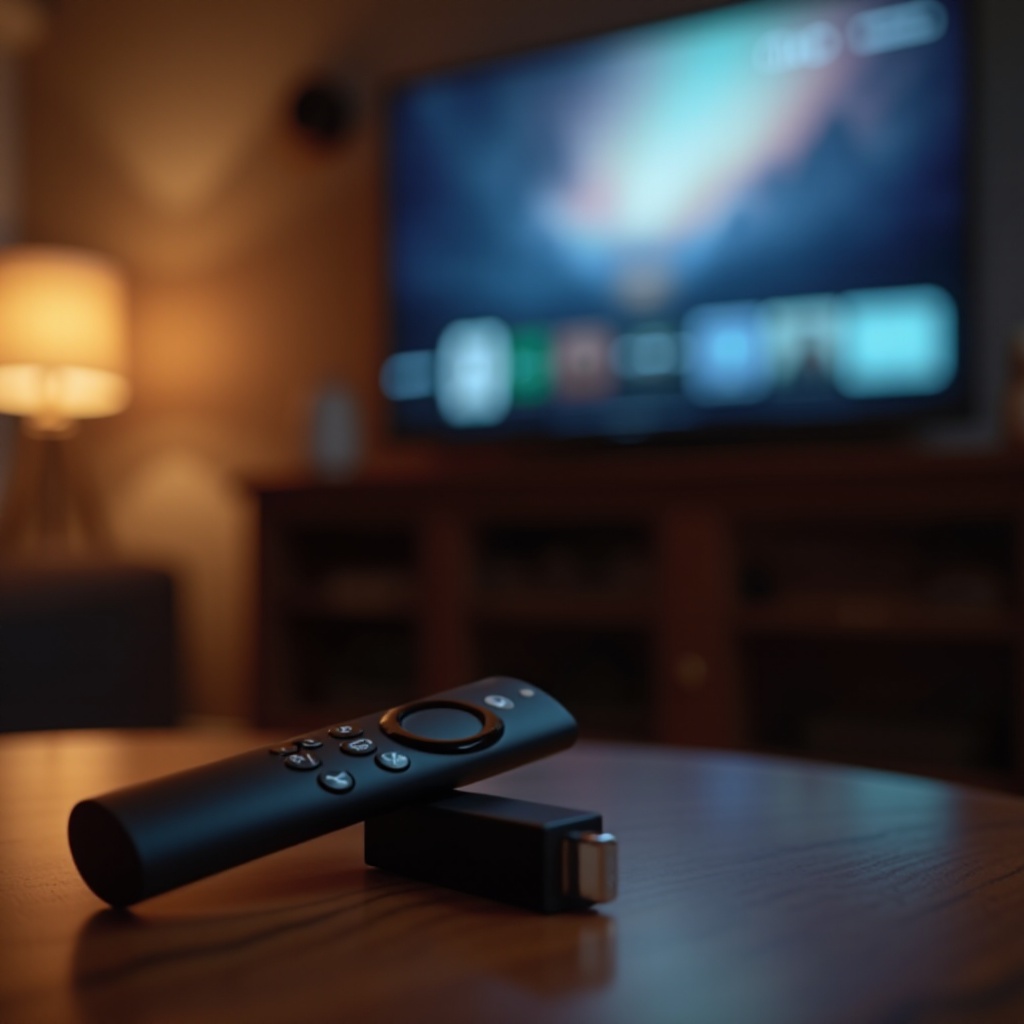
Quick Preliminary Checks
Before diving deep into troubleshooting, simple checks often fix minor glitches.
-
Ensuring Power Supply and Connections: Make sure your device is securely connected to both the power source and your TV. Examine the power adapter for a secure connection and confirm the HDMI link to your TV is stable.
-
Verifying Software and App Updates: Software updates can often resolve functionality glitches. Navigate to ‘Settings’, choose ‘My Fire TV’, then ‘About’, and select ‘Check for Updates’. Ensure your streaming apps are also up-to-date.
After addressing these initial areas, recheck your Fire TV Stick’s performance. If problems persist, proceed to more specific solutions.
Troubleshooting Common Functional Issues
If initial steps did not resolve your Fire TV Stick issues, it’s time to tackle specific problems with dedicated solutions.
- Overcoming Connectivity Challenges:
- Restart your router and modem by unplugging them for 60 seconds before reconnecting.
- Reconnect your Fire TV Stick to the Wi-Fi through Settings > Network, and reselect your network.
-
Address Wi-Fi interference by minimizing obstructions and other electronic devices nearby.
-
Tackling Audio and Video Issues:
- Confirm your TV’s volume is active, and adjust audio settings on the Fire TV Stick.
- Alleviate video buffering by changing video quality settings or use an Ethernet adapter if feasible for a wired setup.
- Inspect your HDMI cable for damage and ensure a secure connection to the TV; replace if necessary.
Implementing these steps often resolves typical issues and enhances your viewing experience.
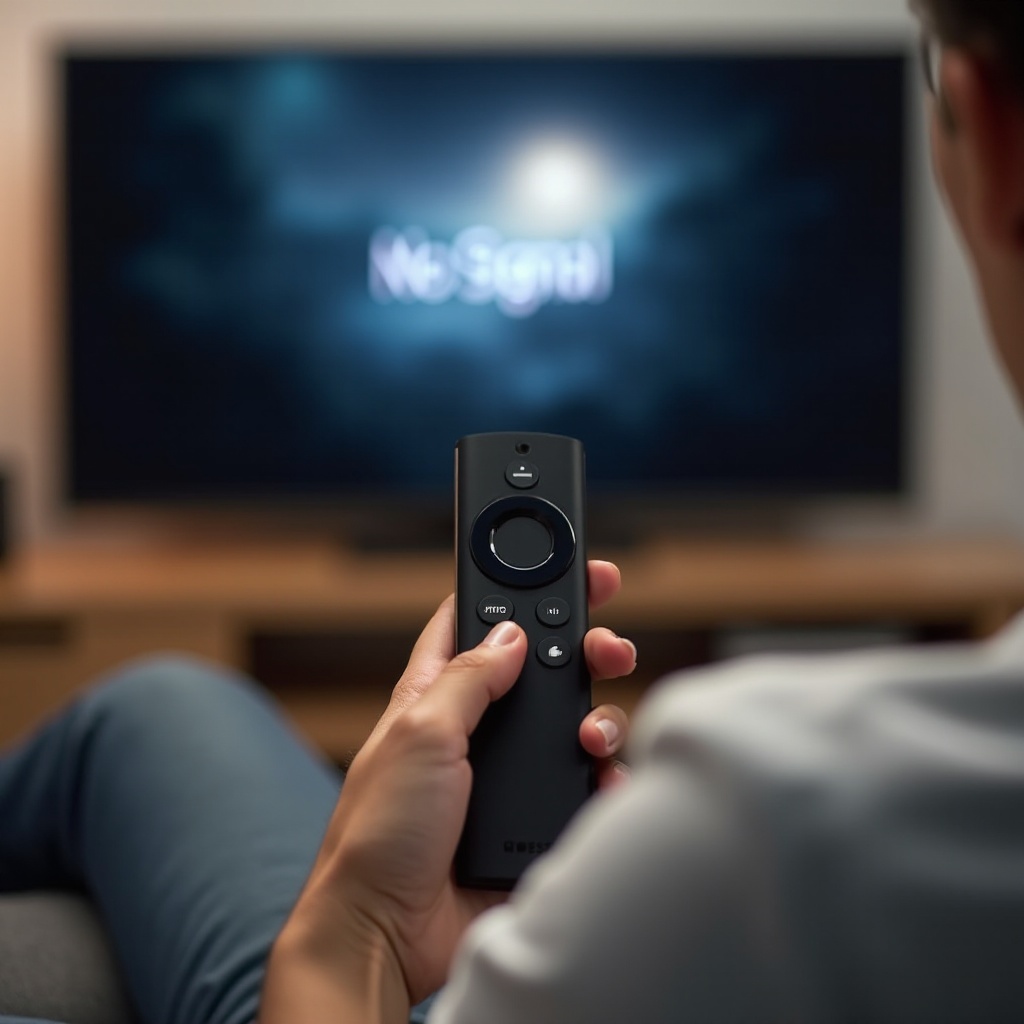
Advanced Troubleshooting Tips
If your Fire TV Stick continues to malfunction, consider these advanced tips to diagnose and resolve persistent issues.
- Resolving Remote Control Issues:
- Replace remote batteries as an initial step.
- Re-pair the remote by holding the Home button for 10 seconds if it remains unresponsive.
-
Use the Fire TV app on your smartphone as a workaround option.
-
Updating the Fire TV Stick Software:
-
Verify the latest software is installed: Settings > My Fire TV > About > Check for Updates.
-
Improving Overall Device Performance:
- Clear cache from infrequently used apps: Settings > Applications > Manage Installed Applications, then ‘Clear Cache’.
- Free up storage by uninstalling less-used apps to enhance speed and responsiveness.
Applying these advanced solutions should optimize your device for a smoother experience.
When to Seek Further Assistance
If none of these suggestions have worked, seeking additional help may be necessary.
- Identifying Hardware Failures:
-
Identify if the actual device is faulty by testing on another TV or checking a different HDMI device on your TV.
-
Contacting Amazon Support for Help:
-
For suspected hardware issues or ineffective software fixes, reach out to Amazon Support. They offer detailed guidance via chat and phone.
-
Exploring Warranty and Replacement Options:
- If warranted, explore repair or replacement options under Amazon’s warranty coverage.
These steps ensure no stone is left unturned before considering a device replacement.
Conclusion
The Fire TV Stick significantly enhances TV viewing but can encounter issues. By following these troubleshooting steps, most problems can be resolved independently. Keeping your device updated and routinely maintained will ensure a seamless streaming experience.
Frequently Asked Questions
What should I do if my Fire TV Stick keeps buffering?
Check your internet connection and lower the video quality settings for smoother streaming.
How can I reset my Fire TV Stick?
Go to Settings > My Fire TV > Reset to Factory Defaults and follow the on-screen instructions.
Why isn’t my Fire TV Stick connecting to Wi-Fi?
Ensure your Wi-Fi network works correctly, reattempt connection, and remove interference from other devices.