
How to Check Your WiFi Password on Windows 10: A Complete Guide
Introduction
Simultaneously connecting multiple devices to a WiFi network can often lead to forgetting the WiFi password. Whether you’re setting up a new device or need to share your network access with friends or family, quickly retrieving your password is essential. In this guide, we’ll explore several effective methods for checking your WiFi password on Windows 10, ensuring you’re prepared whenever needed.
Why Knowing Your WiFi Password is Important
Knowing your WiFi password is crucial not just for personal convenience, but also for maintaining network security and accessibility. Having your password readily available allows for easy connection of new devices and sharing access with trusted individuals. Additionally, regular checking and updating of your password can be a key factor in preventing unauthorized access and maintaining network security.
Checking WiFi Password via Network Settings
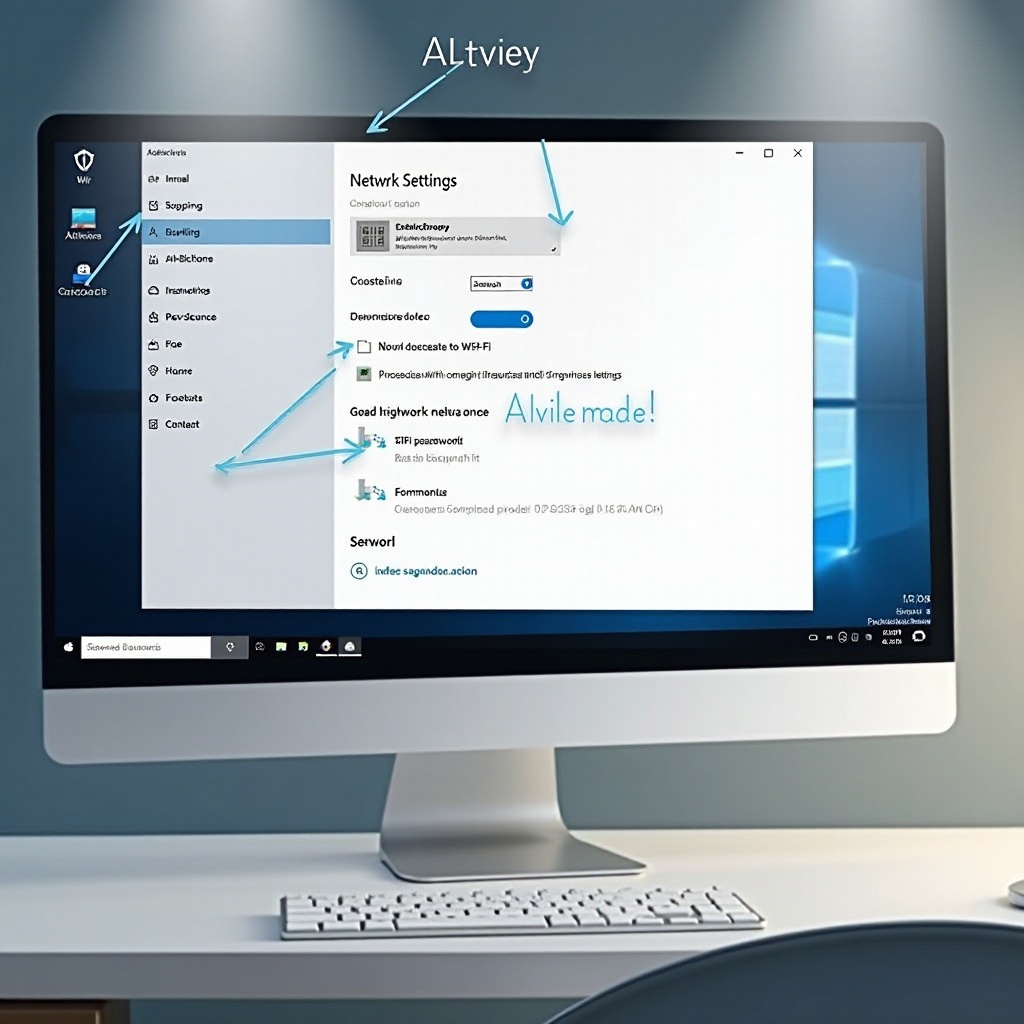
One of the easiest methods to check your WiFi password on a Windows 10 device is through the Network Settings:
- Click on the WiFi icon at the bottom right corner of your screen.
- Select ‘Network & Internet settings’.
- Navigate to ‘Status’, then click on ‘Network and Sharing Center’.
- Under ‘View your active networks’, click the link with your WiFi network name.
- In the WiFi status window, click ‘Wireless Properties’.
- Under the ‘Security’ tab, you will find ‘Network security key’. Check the box labeled ‘Show characters’ to reveal your password.
This method is user-friendly and requires no advanced technical knowledge. If for some reason this method does not work, the Command Prompt offers another reliable alternative.
Using Command Prompt to Find WiFi Password
The Command Prompt allows users to find their WiFi password using a command-line tool:
- Press the Windows key, type ‘cmd’, right-click ‘Command Prompt’, and select ‘Run as administrator’.
- Enter the command:
netsh wlan show profileand press Enter to display a list of all WiFi networks your computer has connected to. - Identify your network name from the list.
- Type:
netsh wlan show profile name="YOUR_NETWORK_NAME" key=clearand press Enter. - Your WiFi password will be displayed next to ‘Key Content’.
Command Prompt is excellent for users who prefer or need command-line access and allows retrieving passwords for both current and previously connected networks. Should you seek a more modern tool, PowerShell might be your preferred choice.
Unlocking WiFi Passwords with PowerShell
PowerShell offers a modern alternative for accessing your WiFi password, valued by those comfortable with its interface:
- Open PowerShell from the Start menu and select ‘Run as administrator’.
- To get all profiles, enter:
netsh wlan show profileand hit Enter. - Identify your WiFi network’s name from the displayed list.
- Use the command:
netsh wlan show profile name='YOUR_NETWORK_NAME' key=clear. - Your password will appear next to ‘Key Content’.
PowerShell is a powerful and versatile tool, providing an efficient option for password retrieval. Encountered issues might require troubleshooting, which we address next.
Troubleshooting Common Issues
If you encounter problems when trying to find your WiFi password, consider the following troubleshooting tips:
- Ensure you have administrative rights when accessing Command Prompt or PowerShell.
- Verify your network driver updates if you face connectivity issues.
- Use an alternative method like PowerShell if you’re unable to retrieve the password using Network Settings.
For persistent issues, third-party software can be an option, albeit with caution regarding potential security risks. Once resolved, let’s focus on how to maintain robust network security.
Best Practices for WiFi Security
Finding your WiFi password is just one aspect of managing a secure network. Here are essential practices for maintaining strong security:
- Change your WiFi password regularly to mitigate unauthorized access risks.
- Opt for passwords combining letters, numbers, and symbols for enhanced security.
- Enable the highest level of encryption supported by your router, such as WPA3.
Following these practices ensures your network remains protected, safeguarding your data from potential security breaches.
Conclusion
Knowing how to check your WiFi password on Windows 10 is a practical skill, detailed in straightforward steps using Network Settings, Command Prompt, or PowerShell. By understanding these methods, you ensure both easy access to your network and improve overall digital security. Regular password updates and strong security measures provide peace of mind and a safe online environment.
Frequently Asked Questions
How do I find my WiFi password on Windows 10 without admin rights?
Unfortunately, you need administrative rights to access WiFi passwords through network settings, Command Prompt, or PowerShell.
Can I use third-party software to find my WiFi password?
Yes, there are third-party applications available, but it is important to ensure they come from reputable sources to avoid security risks.
What should I do if I can’t find my WiFi password using these methods?
Consider resetting your router to factory settings, which will reset the password to its default as provided by the manufacturer. This default password is typically labeled on the router.