
Integrating iPad with Windows 10: A Comprehensive Guide
Introduction
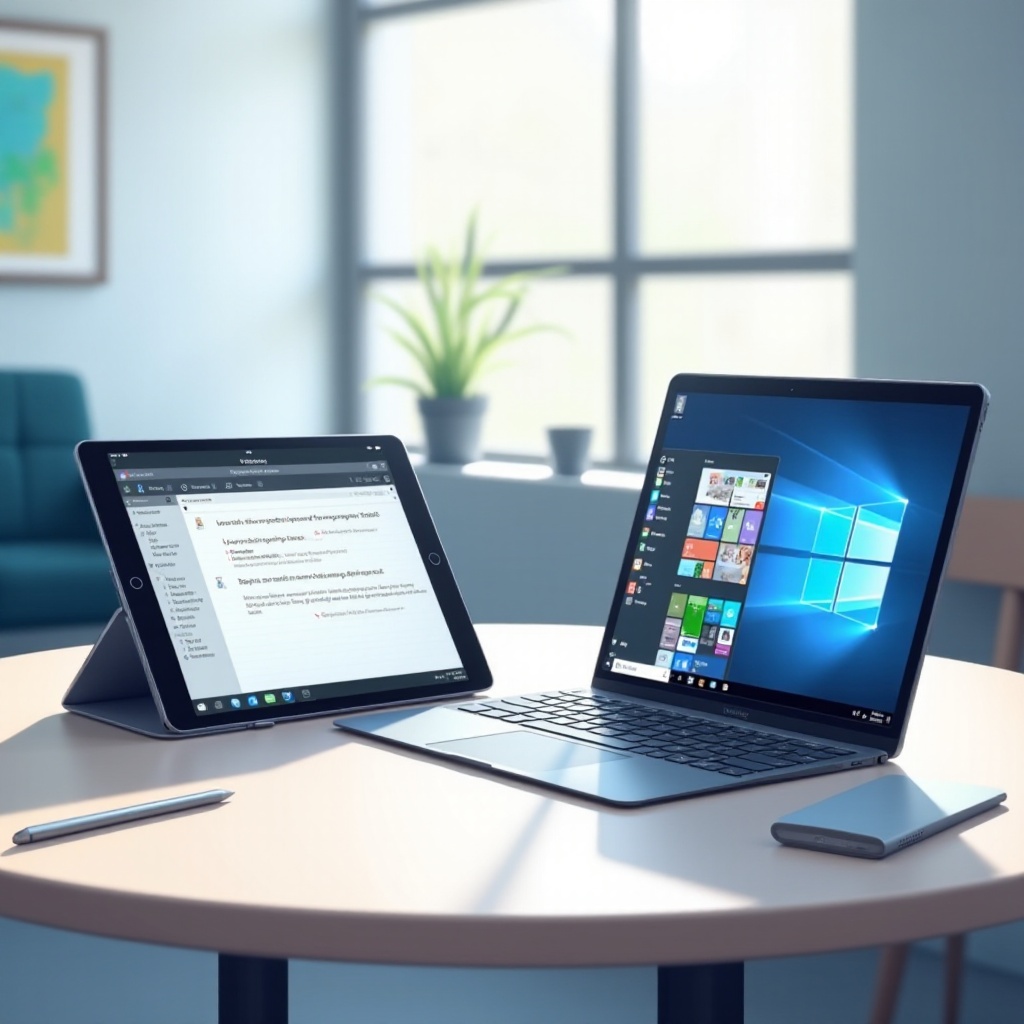
Combining the functionalities of iPads and Windows 10 opens up a world of improved productivity and creative possibilities. By connecting these devices, users stand to gain enhanced multitasking capabilities and a broad spectrum of available applications. This comprehensive guide will illuminate the process of linking your iPad with Windows 10, thus unlocking new creative avenues and maximizing your tech capabilities.

Setting Up Your iPad with Windows 10
Embarking on this integration journey necessitates an initial setup for smooth communication between your devices. Begin with ensuring your hardware and software are primed for optimal performance.
Bullet Points:
– Hardware Preparation:
– Connect both your iPad and Windows 10 PC to a reliable Wi-Fi network.
– If a wired connection is preferable, use a high-quality USB cable.
- Software Requirements:
- Install iTunes or an appropriate connectivity tool to enable efficient file transfers and device management.
- Keep both your iPad and PC updated with the latest software versions to prevent compatibility issues.
With the groundwork laid, you are ready to explore how your iPad can serve as a secondary display, enhancing your productivity with additional screen real estate.
Using Your iPad as a Secondary Display
An additional screen can significantly boost your productivity by facilitating multitasking, essential for professions like graphic design, programming, or content creation. Transforming your iPad into a secondary display is straightforward.
Bullet Points:
– Sidecar for macOS users:
– Windows users can rely on third-party apps like Duet Display or Luna Display.
– Steps to follow:
1. Download the app to both your iPad and Windows device.
2. Connect wirelessly or via USB.
3. Adjust your display settings to perfectly complement your workflow.
After setting up your iPad as an extra monitor, you can then move on to tap into cross-platform productivity apps that streamline operations seamlessly.
Enhancing Productivity
Once your devices are integrated, explore the array of productive applications that leverage cross-platform use efficiently.
Bullet Points:
– High Impact Productivity Apps:
– Microsoft OneNote: Facilitates seamless note synchronization across devices.
– Notion: Perfect for managing projects with updates shared effortlessly.
– Evernote: An excellent choice for capturing spontaneous ideas and organizing tasks effectively.
- Cloud Service Utilization:
- Utilize services like iCloud or OneDrive for smooth, cross-platform file sharing.
- Storing documents in the cloud enables quick access and easy collaboration with team members.
Harnessing these productivity tools also paves the way for using your iPad in creative endeavors alongside Windows 10.
Creative Applications and Use Cases
The iPad, when combined with Windows 10, becomes an invaluable tool for creative professionals looking to augment their work.
Bullet Points:
– For Graphic Design:
– Apps like Procreate on iPad paired with Adobe Creative Cloud allow for initial sketches and detailed edits.
– Take advantage of the Apple Pencil’s precision for intricate designs.
- Video Editing Dynamics:
- Initiate projects using iMovie or LumaFusion before refining them with Adobe Premiere Pro on Windows.
As these creative applications demonstrate potential, it is crucial to be ready to tackle any issues that might arise during integration.
Troubleshooting Common Issues
Even with seamless possibilities, it’s normal to encounter some integration challenges. Being proactive in addressing these ensures a smoother experience.
Bullet Points:
1. Addressing Connectivity Issues:
– Ensure both Bluetooth and Wi-Fi are active and configured correctly on all devices.
– Restart devices to refresh network settings if connection drops occur.
- Resolving Performance Lags:
- Regularly terminate unnecessary apps running in the background to conserve resources.
- Periodically clear cached data and unwanted files to maintain optimal device speed.
Tackling these typical issues effectively allows you to focus on deriving maximum advantage from the iPad-Windows 10 synergy.
Conclusion
Embracing the integration between your iPad and Windows 10 unveils a new dimension of productivity and creativity. By making the most of the various cross-platform apps and techniques, you enrich your digital experience, primed for both personal and professional advancement. Whether you’re an artist, a professional, or a technology enthusiast, this dynamic duo serves your needs effectively, offering a powerful and versatile tech ecosystem.
Frequently Asked Questions
Can I use my iPad as a second monitor for Windows 10?
Yes, using third-party apps like Duet Display or Luna Display allows you to use your iPad as a secondary display.
What apps are best for syncing files between iPad and Windows 10?
Cloud services like iCloud, OneDrive, and Google Drive offer efficient file syncing across iPad and Windows 10.
How can I troubleshoot connection issues between my iPad and Windows 10?
Ensure Bluetooth and Wi-Fi are turned on, restart your devices, and manage background apps to enhance connectivity.