
Your Complete Guide: Fix Flash Drive Won’t Read on My Computer
Introduction
Finding out that your flash drive won’t read on your computer can lead to considerable frustration, especially when you need access to important files. This is an issue many users encounter, and knowing how to troubleshoot effectively can save time and protect your data. From minor connection glitches to intricate software conflicts, discovering the root cause is imperative. In this guide, we will delve into various proven methods to troubleshoot and resolve why your flash drive isn’t being recognized, beginning with basic hardware checks and then progressing to more detailed solutions. This systematic approach ensures you have the best chance of addressing the problem quickly and effectively.
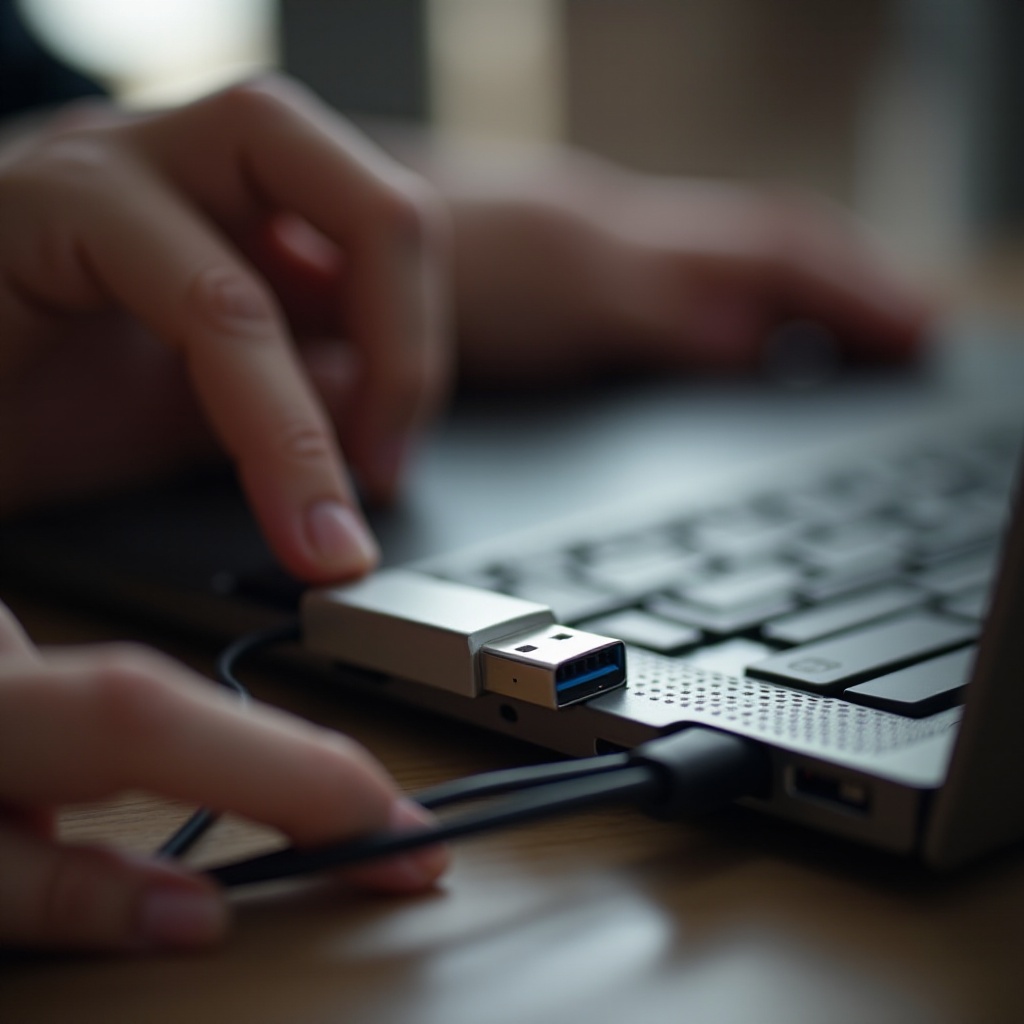
Basic Hardware Checks
Before we move onto software solutions, let’s ensure that your hardware isn’t the culprit. Often, hardware problems are the easiest to fix yet are mistakenly overlooked.
Verify USB Port Functionality
- Test a Different Port: Begin by plugging the flash drive into an alternative USB port. If one port stops functioning, switching to another helps identify if the problem is isolated to that port.
- Try Other Devices: Plug the flash drive into another computer or device. This method can help determine if the issue lies with the flash drive itself.
Inspect Flash Drive for Damage
Physical damage might prevent your flash drive from connecting seamlessly. Examine the device carefully:
- Check for Physical Wear: See if there are noticeable damages such as cracks or bends.
- Inspect the Connector: Ensure there is no debris or corrosion on the USB connector, as this can interfere with connectivity. Consider cleaning it gently with a dry cloth.
If the hardware appears intact, proceed to the next section, where we explore software solutions to resolve ongoing issues.
Software Solutions
When hardware checks yield no results, a software problem might be the root cause. In many cases, a simple update or configuration change will rectify the issue.
Update or Reinstall USB Drivers
Drivers are critical for your computer to share information with hardware devices. Ensure they’re functioning correctly by:
- Open Device Manager: On a Windows computer, navigate to Device Manager and find the ‘Universal Serial Bus controllers.
- Update Drivers: Right-click on each USB hub or port and select ‘Update driver’ to ensure they are up-to-date.
- Reinstall Drivers: If updating doesn’t resolve the problem, uninstall the driver and restart your machine so that it reinstalls itself automatically.
Use Windows Troubleshooter or Mac Diagnostics
Built-in diagnostic tools often provide straightforward solutions:
- Windows Users: Use the troubleshooter by searching ‘Troubleshoot’ under settings. Select ‘Hardware and Devices’ and follow on-screen instructions.
- Mac Users: Utilize Disk Utility in Applications > Utilities to verify and repair disk permissions.
These tools can uncover less obvious issues and may present a direct path to rectify them or suggest further corrective actions.

Managing File System Issues
Sometimes, a mismatched file system can prevent your device from accessing the flash drive. Understanding this is crucial in preventing unneeded troubleshooting steps.
Check File System Compatibility
Assess whether the flash drive’s file system aligns with your computer’s OS:
- Windows and NTFS: Confirm if the flash drive uses NTFS, compatible with Windows but sometimes incompatible with macOS without added tools.
- macOS and HFS+: Mac systems prefer HFS+ or the newer APFS formats, which may not play well with Windows systems.
Reformat Flash Drive Safely
For ongoing compatibility issues, reformatting might be the solution:
- Back Up Data: Always back up your files before formatting.
- Select the Right File System: Choose FAT32 or exFAT for broader OS compatibility.
- Format the Drive: Use the system utility (Disk Management on Windows or Disk Utility on macOS) to conduct formatting.
Choosing the suitable file system format reduces the risk of recurrence and streamlines future cross-platform use.

Advanced Troubleshooting Techniques
If the issue persists, employ advanced methods, diving deeper into potential causes and solutions.
Deploy Third-Party Data Recovery Tools
In cases of suspected data corruption:
- Select Credible Software: Use reputable tools like Recuva or Disk Drill for recovering lost files.
- Follow Software Instructions: Each tool will navigate you through the recovery process to help retrieve corrupted or lost data.
Address Hardware Conflicts and Scan for Malware
Sometimes, problems stem from competing hardware or malicious software:
- Identify Conflicts: Disconnect other USB devices to see if they are causing interference.
- Scan for Malware: Conduct a comprehensive system scan with updated antivirus software to detect and remove potential threats impacting your hardware.
By leveraging these advanced strategies, you optimize your efforts in troubleshooting any flash drive reading issues.
Conclusion
Diagnosing a flash drive that won’t read requires a blend of basic to advanced strategies, focusing on both hardware and software elements. From straightforward port issues to intricate software conflicts, taking a methodical approach boosts your chances of resolving the problem swiftly. Empowered with new tools and solutions, you are better prepared to tackle and solve any future flash drive challenges expediently.
Frequently Asked Questions
Why does my flash drive work on other computers but not mine?
The issue might stem from compatibility mismatches or specific configurations on your computer.
Can I fix a physically damaged flash drive?
Minor damage can sometimes be fixed by cleaning, but severe physical damage often renders flash drives irreparable without professional intervention.
Is there a risk of data loss when reformatting?
Yes, formatting erases all data. Ensure you back up important files before proceeding with this step.